How to prepare a field device for offline sign-off in JHA Creator
Work areas often have a weak signal or none. Preparing a phone while it's connected downloads the briefing, so the crew member can read it, confirm attendance and sign at the work area. The records sync when the phone is back online.
Before you start
- The briefing's QR code scanned or its invitation link opened (see Let the crew sign in with a QR code)
- A browser that supports offline use; otherwise use the printable sign-in sheet
Preview voice Narrated with a local preview voice; the final recording replaces it.
Transcript
Get a phone ready to sign a briefing where there's no signal.
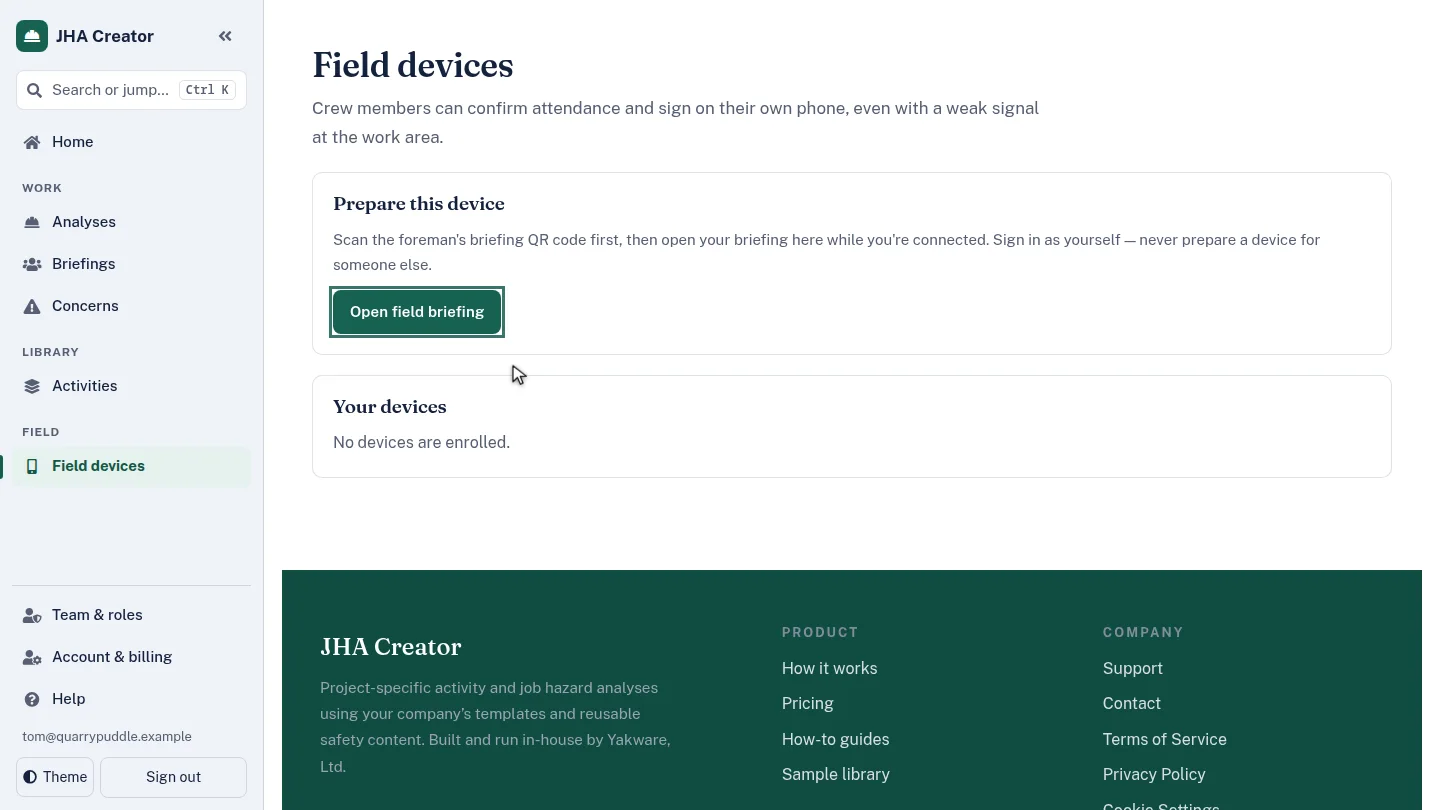
While you're connected, scan the briefing QR code, and select Sign in and prepare this device. On Field devices, select Open field briefing.
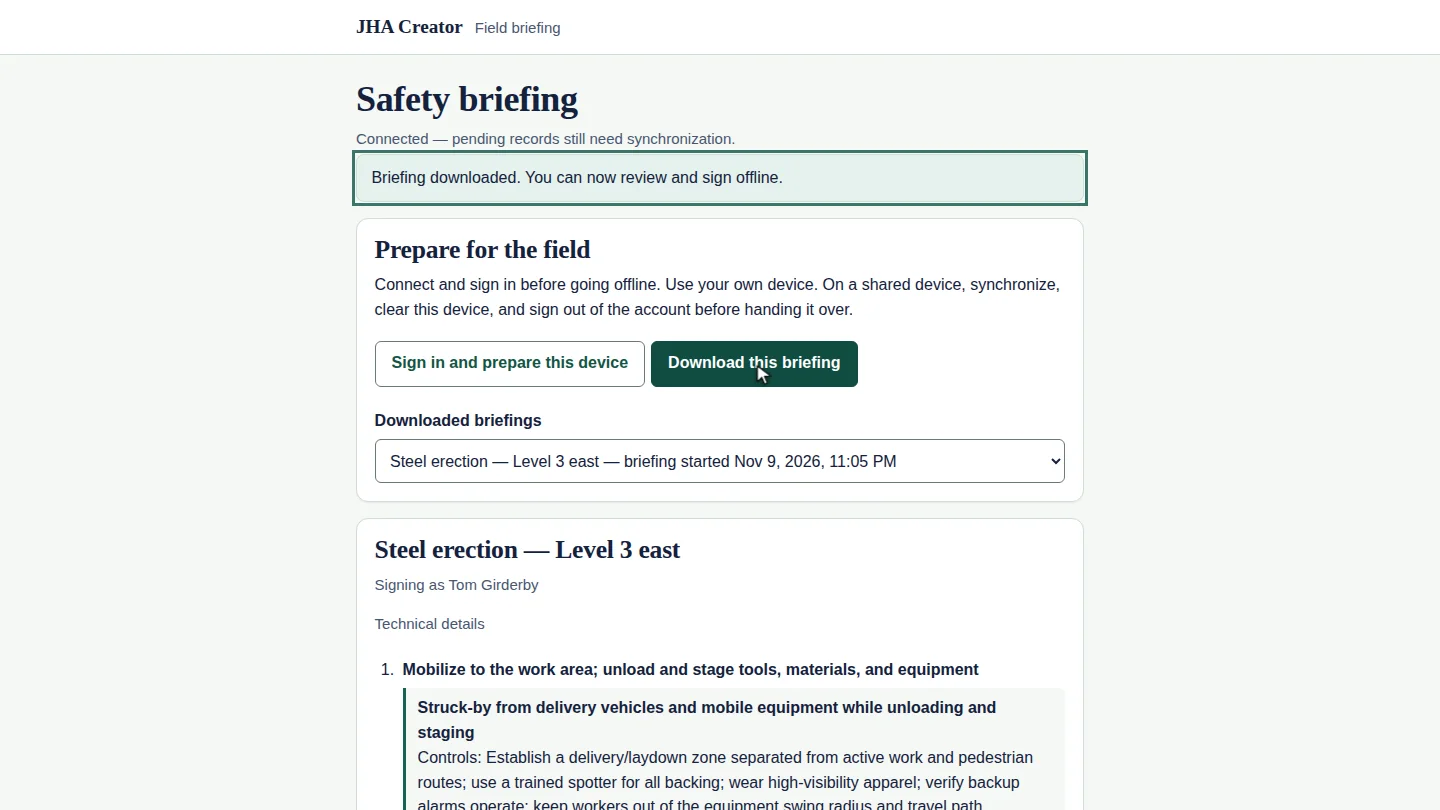
On the Safety briefing page, select Download this briefing.
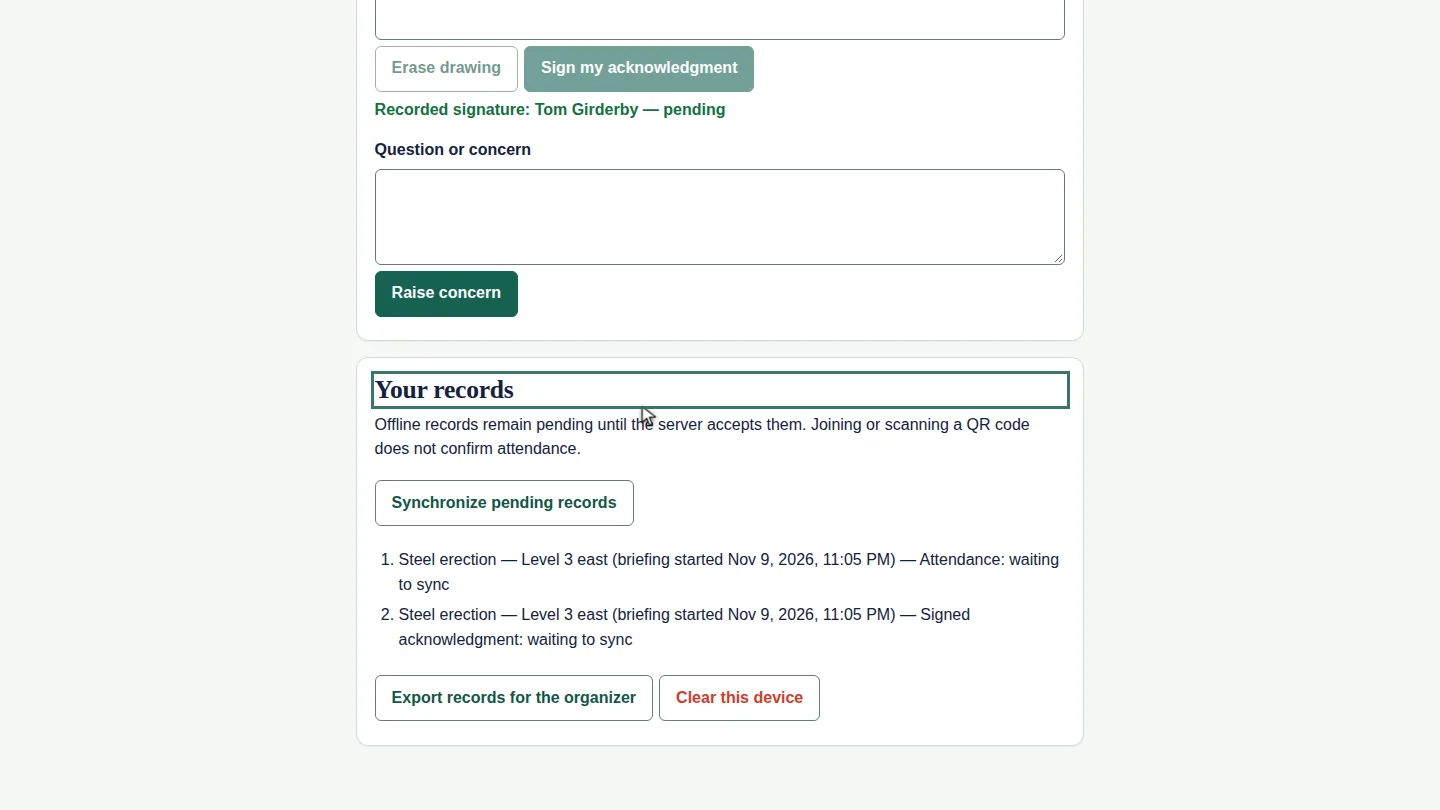
At the work area, with no signal, confirm attendance and sign. Each record waits on the phone as pending until it syncs.
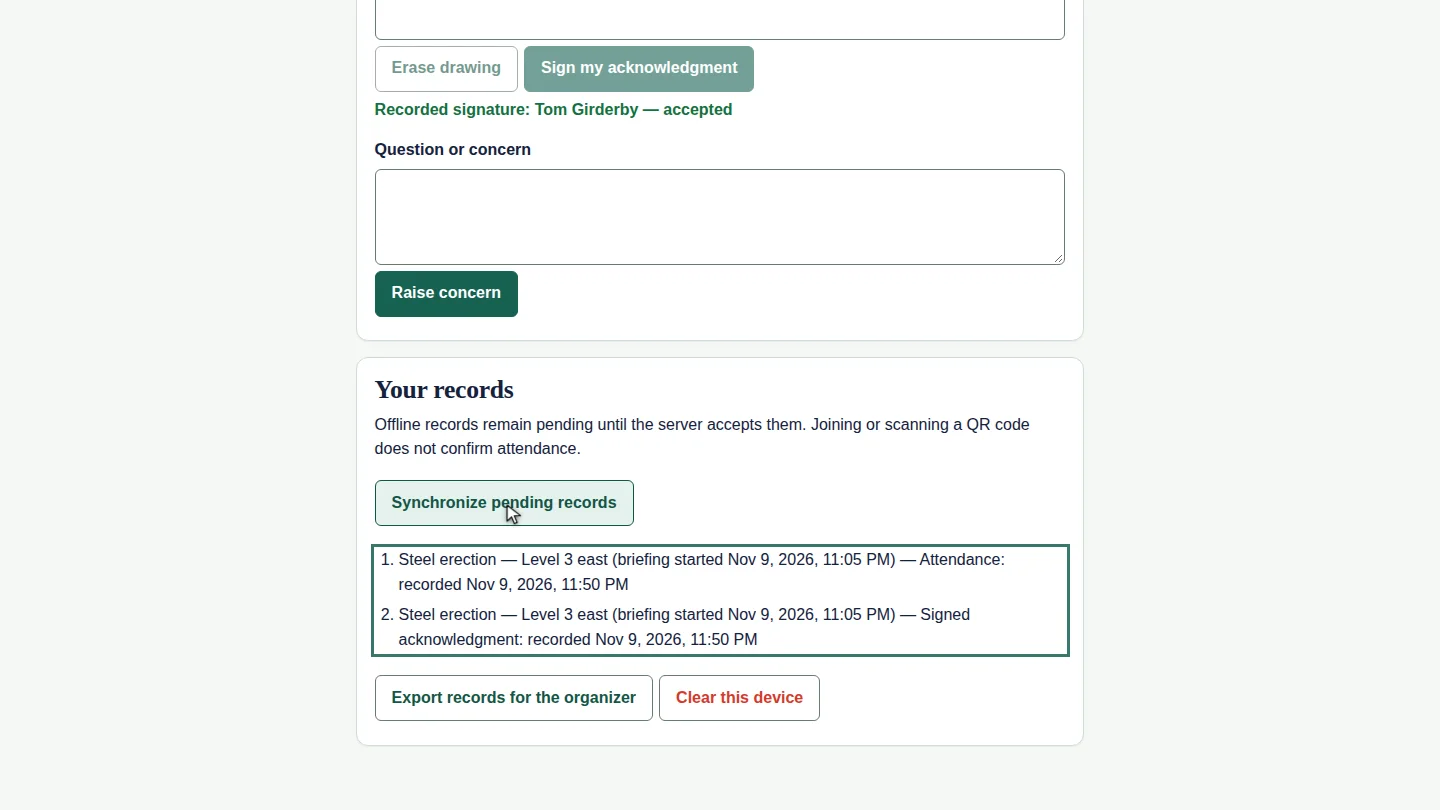
Back in signal, it syncs by itself, or select Synchronize pending records.
On a shared device, select Clear this device and sign out before handing it on.
Steps
Open the field briefing ▶ 0:05
While you have a signal, scan the foreman's briefing QR code. On the Safety briefing page, select Sign in and prepare this device. JHA Creator opens Field devices (also in the sidebar); under Prepare this device, select Open field briefing.
Download the briefing ▶ 0:16
On the Safety briefing page, select Download this briefing. The page says Briefing downloaded. You can now review and sign offline.
Sign at the work area ▶ 0:20
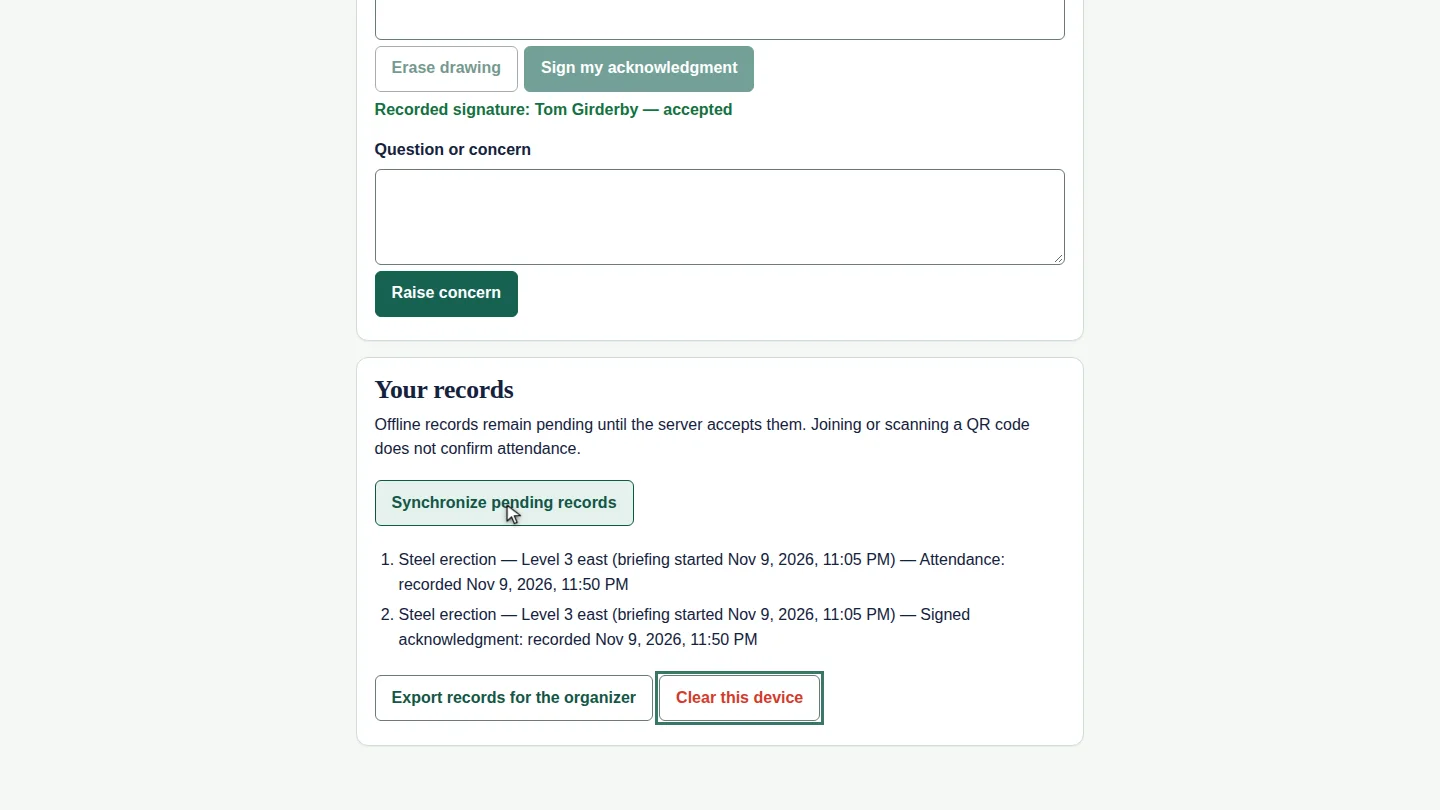
At the work area, open the same page, even offline. Select Confirm my attendance, then tick the review box, type your name and select Sign my acknowledgment. Each record is saved on the device and shows waiting to sync.
Synchronize ▶ 0:29
Back in signal, the page syncs by itself. To sync straight away, select Synchronize pending records. When it's done, the page says All recorded actions have server receipts.
Clear a shared device ▶ 0:35
On a shared device, synchronize first, then select Clear this device and sign out before handing it to another worker.
Next steps
Updated 2026-11-09
offline field device no signal phone sync shared device revoke device